

10 Tips to Create Better AI Music Videos
Most disappointing AI music videos fail for the same reasons: a character who changes face between shots, a weak starting image, the wrong model for the shot, or lip sync on a face too small to read. These are the ten things we tell creators most often. They come from our team, and in particular from Mariia, our creative technologist and a former music video director, who works on our prompts and storyboard structure. She walks through all of them live, on a real project, in the masterclass below.
Watch the full walkthrough with Mariia:
Model names and screens are as of the recording. In the video, Mariia builds a full video for the song "Frozen" by The Erised while answering questions, so every tip comes with a real example.
Key takeaways
- Build each character from several high-quality photos taken from different angles, and make one card per outfit.
- Spend your effort on the starting image. Video models copy what you give them.
- Match the video model to the shot: cheap models for simple motion, the strongest model for physics like water and doors.
- Use lip sync only where the face is large and readable, and mix it with story shots.
- Fix small things with the edit chat, and recreate the keyframe for big changes.
1. Build character cards from several angles
Our starting point: video models animate pixels. If you upload one photo, the AI doesn't know what your nose looks like from the side. Upload high-quality photos from different angles and in different lighting (front, side and three-quarter). The app builds a character card from them, which you can reuse in every project.
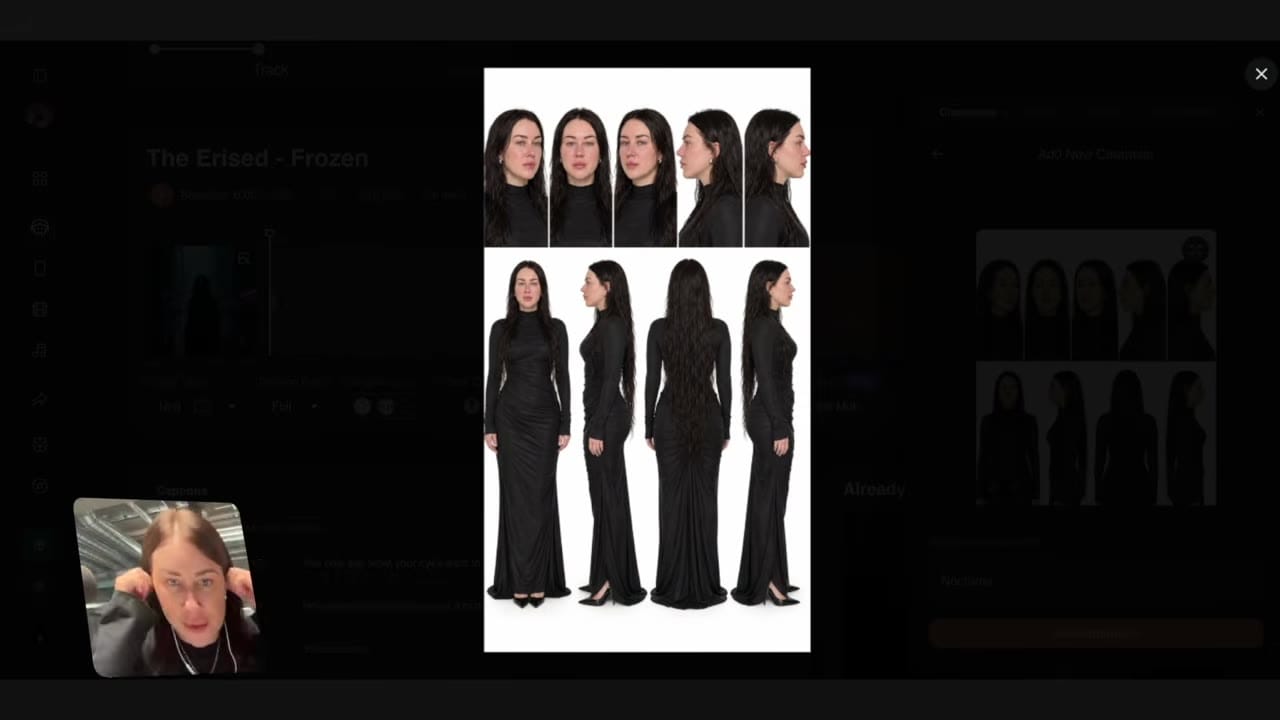
Even with good references, no model holds a face perfectly. An independent benchmark of 26 image models found that "every model drifts somewhere: outfits change, faces shift, props disappear." That's why the review steps in tips 7 and 8 matter. For more on this, see our post on character-consistent music videos.
2. Make one card per outfit
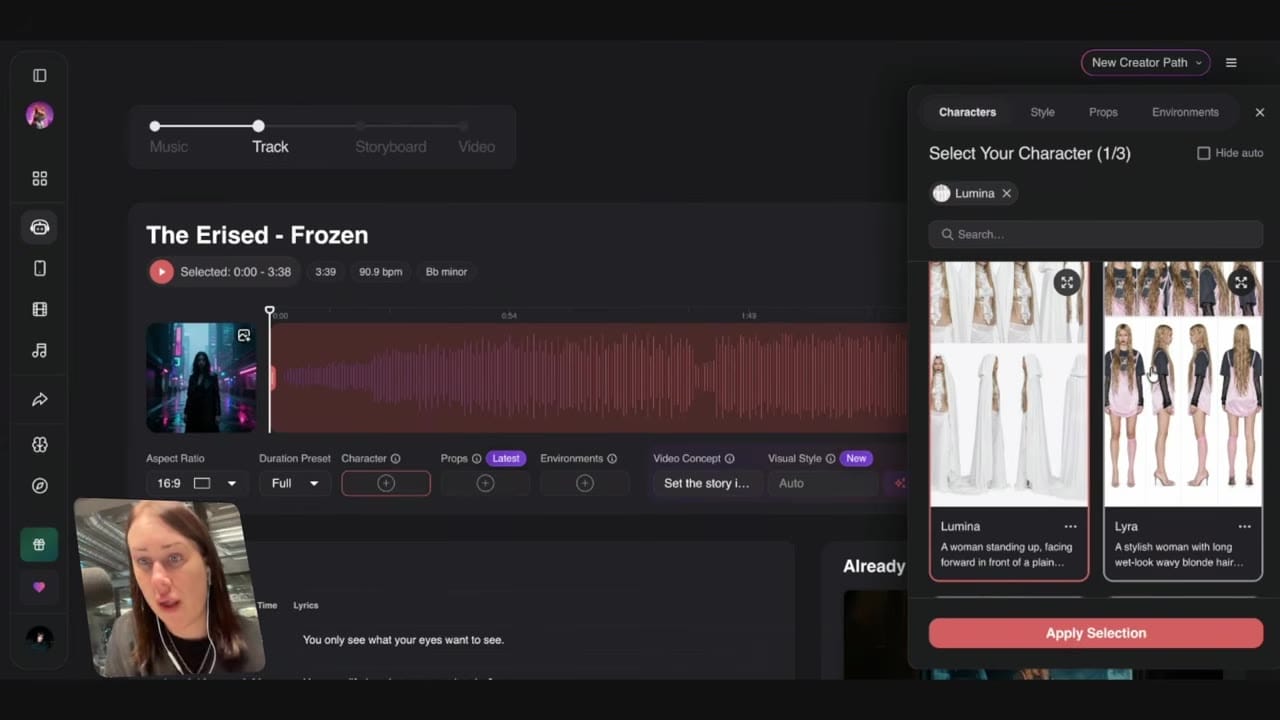
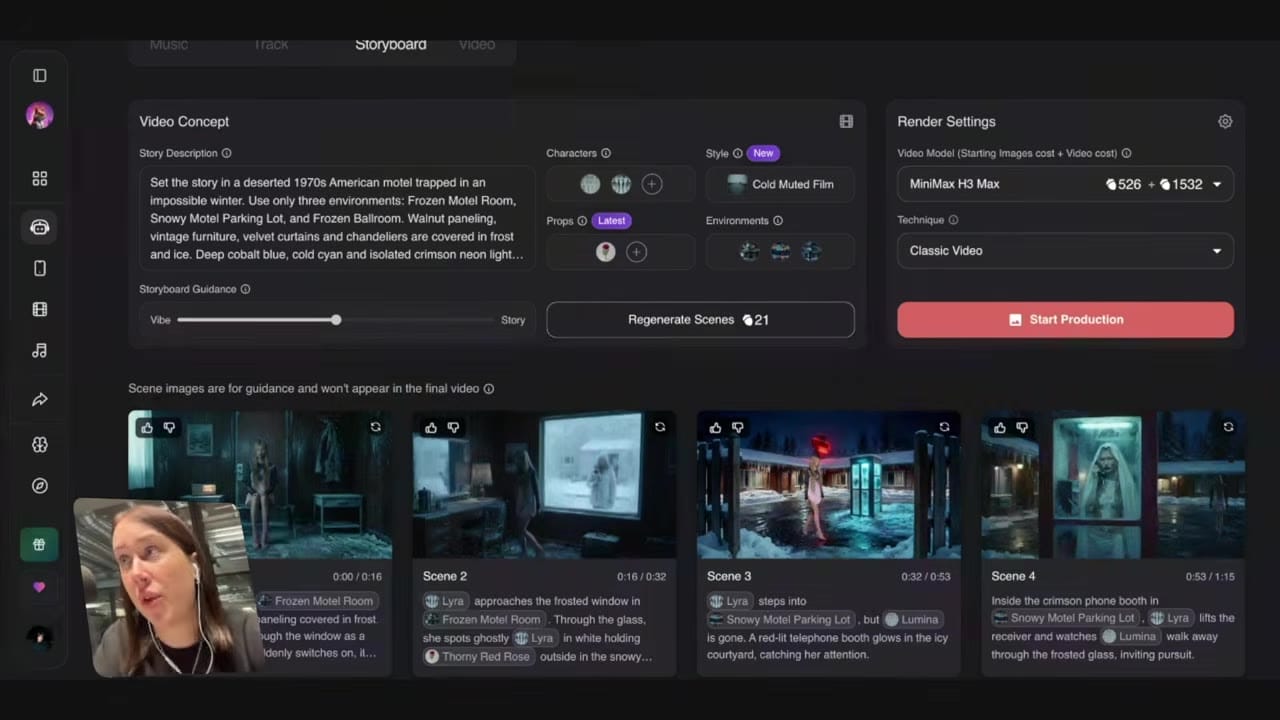
To keep a character consistent through a costume change, we recommend creating two characters, one for each look, and using whichever fits the scene. Give them clear names. In the video, Mariia uses "Lumina" and "Lyra" for two versions of the same face, and the AI treats them as separate characters. The same trick works for a ghost, an alter ego or a "before and after".
3. Be specific about props
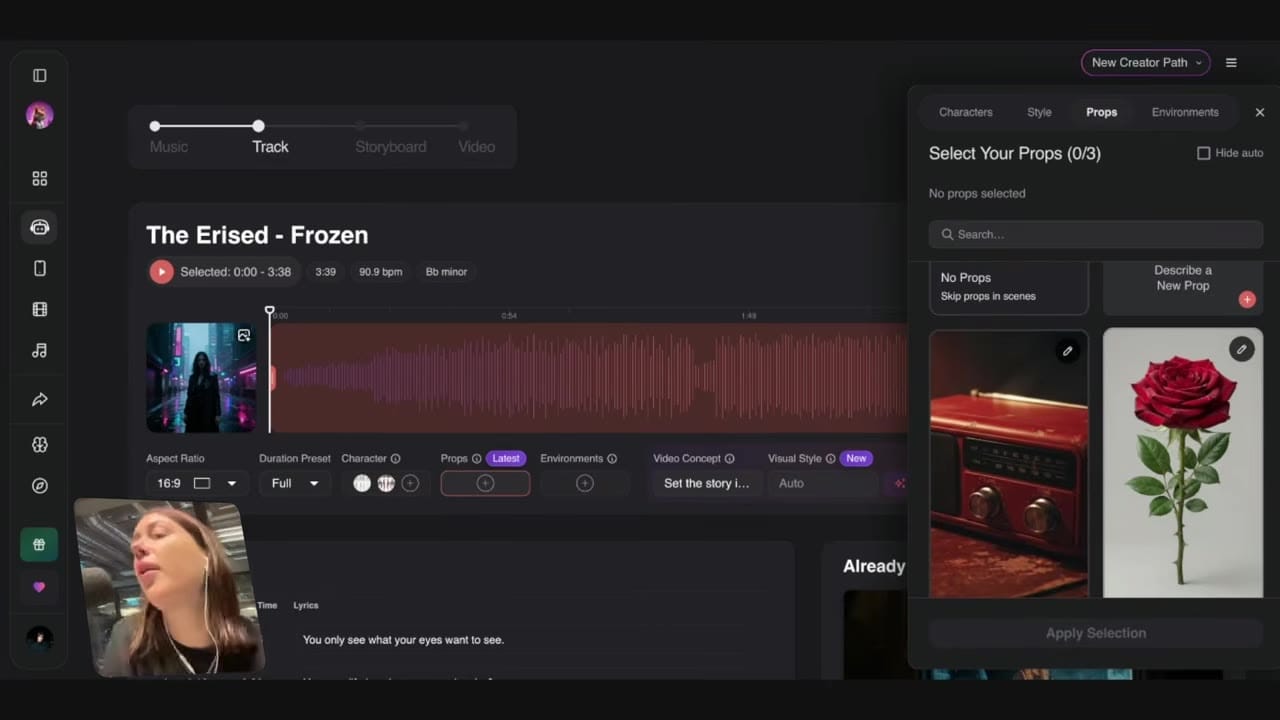
In the project setup you can add props. If you choose automatic props, the AI creates them from your concept. For example, a story about a glass of water gets a generated glass of water. If you want something specific, such as a red rose as a symbol, or a real object with a logo, create that prop yourself.
4. Set the scene with environments
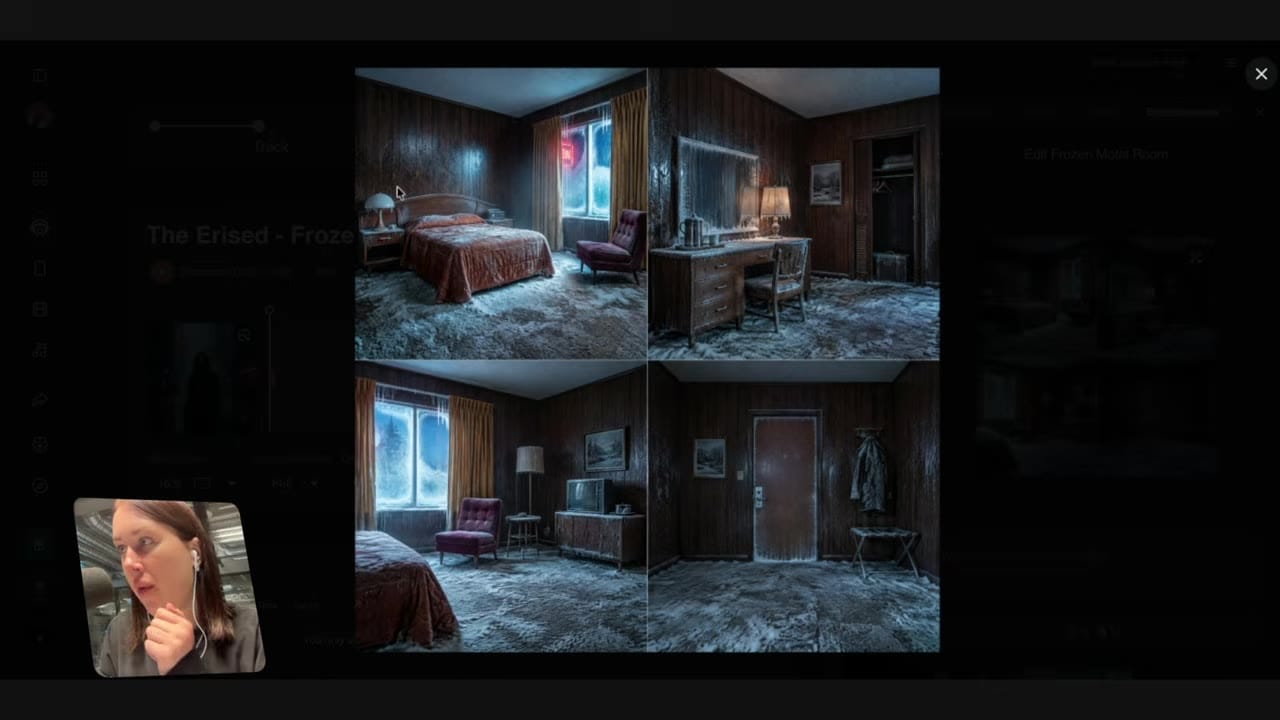
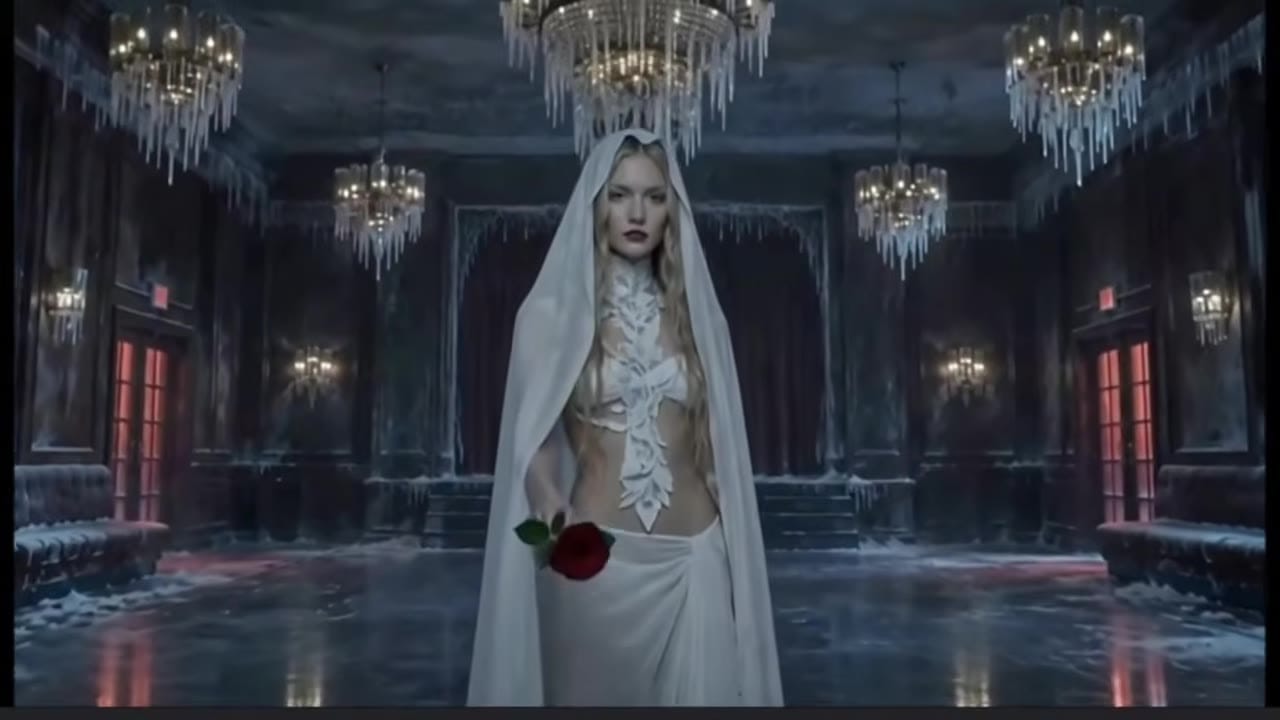
At the time of recording, Environments was an upcoming feature. You choose from existing locations or describe a new one, and the AI returns a preview before you commit. In the demo, Mariia limited the concept to three locations (a motel room, a snowy parking lot, a ballroom). We find that fewer locations help keep a short video coherent.
5. Start with Classic Video, add lip sync later
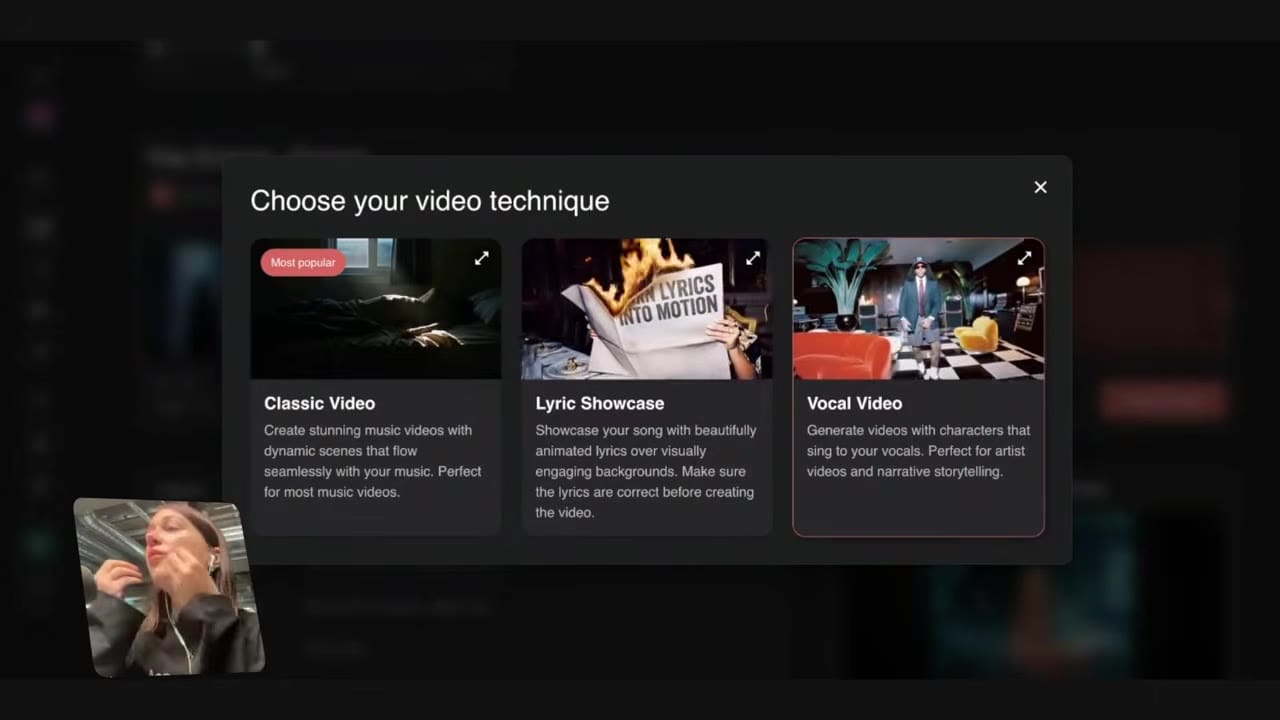
Classic Video, Lyric Showcase and Vocal Video are the three techniques. Vocal Video generates keyframes for lip-sync: mostly chest and waist shots and face close-ups. We prefer Classic Video, because the framing is more varied. You can still put lip sync on the shots that suit it afterwards. If your video is mostly about the singer's performance, Vocal Video is the more direct path.
6. Match the model to the shot
A quick guide to the models, as of the recording:
- The oldest, cheapest models (it sounds like Seedance 1.5 and 1.5 Fast): fast, fine for simple motion like a slow head turn or walking, bad with physics such as water splashes or falling paper.
- MiniMax H3, the platform's default: fast, multi-shot, reasonably consistent, "the most democratic price". It can be weak with water and doors.
- The strongest model: Seedance 2.5 is recommended for complex physics and for doors. It's slower and much more expensive.
- Kling: in our tests, lip-sync characters can look "very AI and plastic", but with good starting images the texture is comparable to the top model.
Choosing the image model matters too, especially with a budget video model. We compared them in How to Pick the Right Image Model for Your AI Music Video.
7. Spend your effort on the starting image
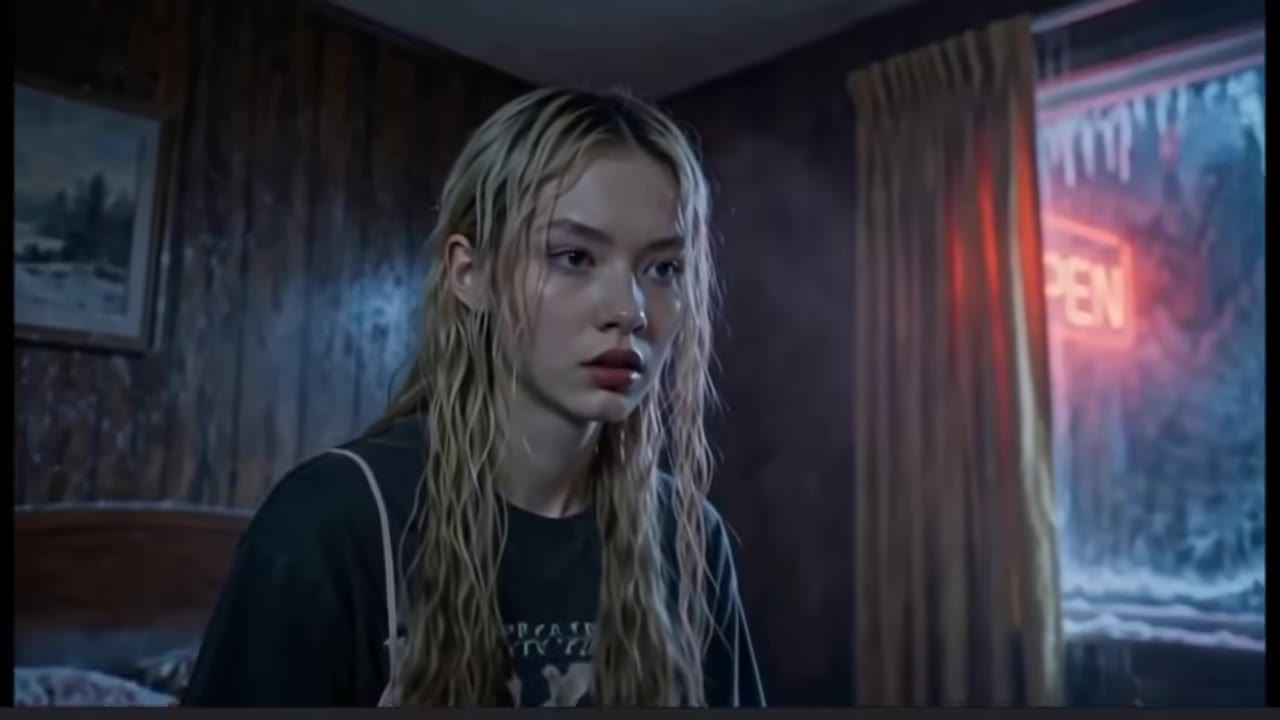
"The keyframes are the key." Video models copy what you give them, so a plastic-skinned or badly framed starting image becomes a plastic-skinned video. Aim for perspective, cinematic grain and shallow depth of field. Good starting images are the main reason our lyric videos work well.
8. Recreate big changes, edit small ones
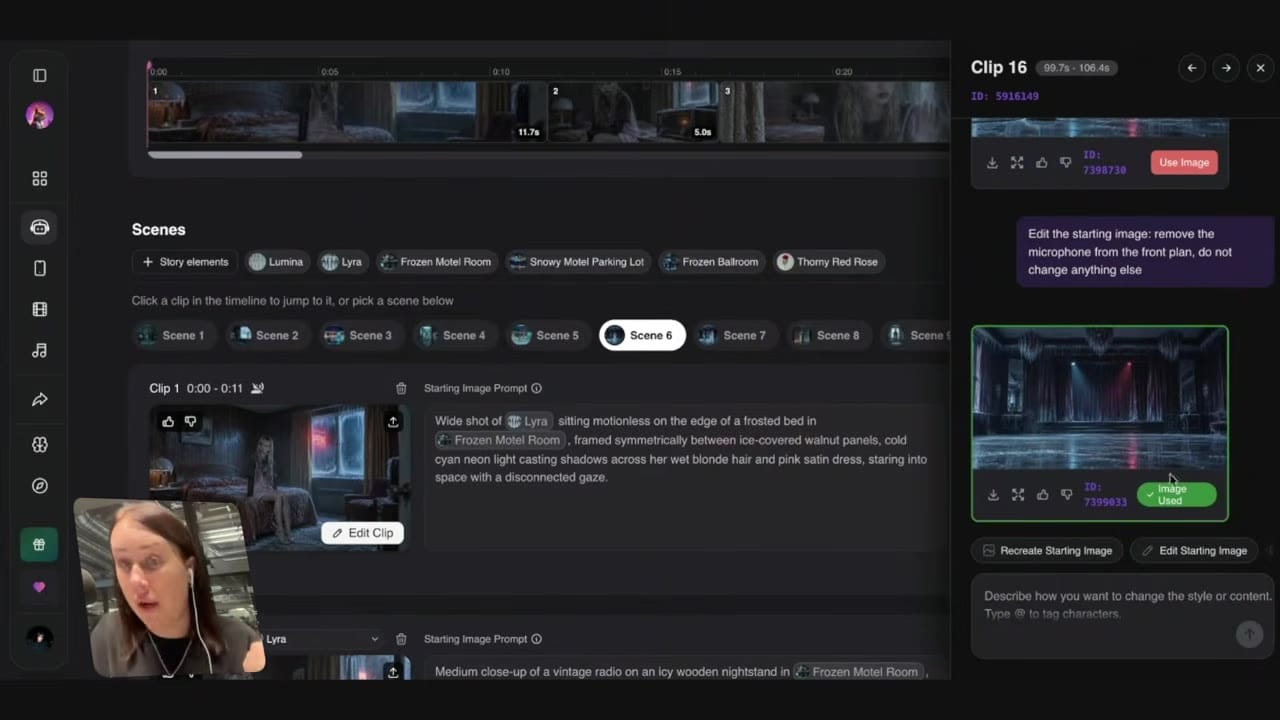
Every keyframe has two options: Recreate Starting Image and Edit Starting Image. For small fixes, use the edit chat, for example "Remove the microphone from the front plan. Do not change anything else." For big changes, recreate from the prompt, which re-applies all your references. Each edit round blurs the face slightly, so after about ten tweaks, start over.
9. Use lip sync only where the face is readable
Lip sync models find a mouth. They don't know who is singing, so check your keyframes before you spend credits: right character, face visible. Our rules:
- Skip wide shots (tiny face, blurry result) and shots with the back to the camera.
- Use waist shots, portraits, close-ups and macro shots on the lips.
- If a shot has two people, pick the singer in the drop-down menu.
- If the Lip Sync button is locked, there's no vocal in that part of the song.
Dedicated lip-sync tools give the same advice. sync. labs' quality guide says "frontal or near-frontal face angles produce the best lip sync results" and recommends a single face in frame, or choosing the speaker when there are several. Our full lip-sync music video guide covers which images and shots sync best.
10. Mix lip-sync with story, and plan around weak spots
You don't need lip sync in every shot, and it saves cost. We suggest one line of lip-sync performance and a separate line of story, the classic music video structure. When a shot is wrong, change it: in the demo, Mariia removes a microphone, adds b-roll, and swaps one of two full-length shots in a row for a portrait to vary the framing. If a door or water splash looks off, re-render, or try another angle, as these are known weak spots for the cheaper models.
Bonus: lyric video plus lip sync, and Spotify Canvas
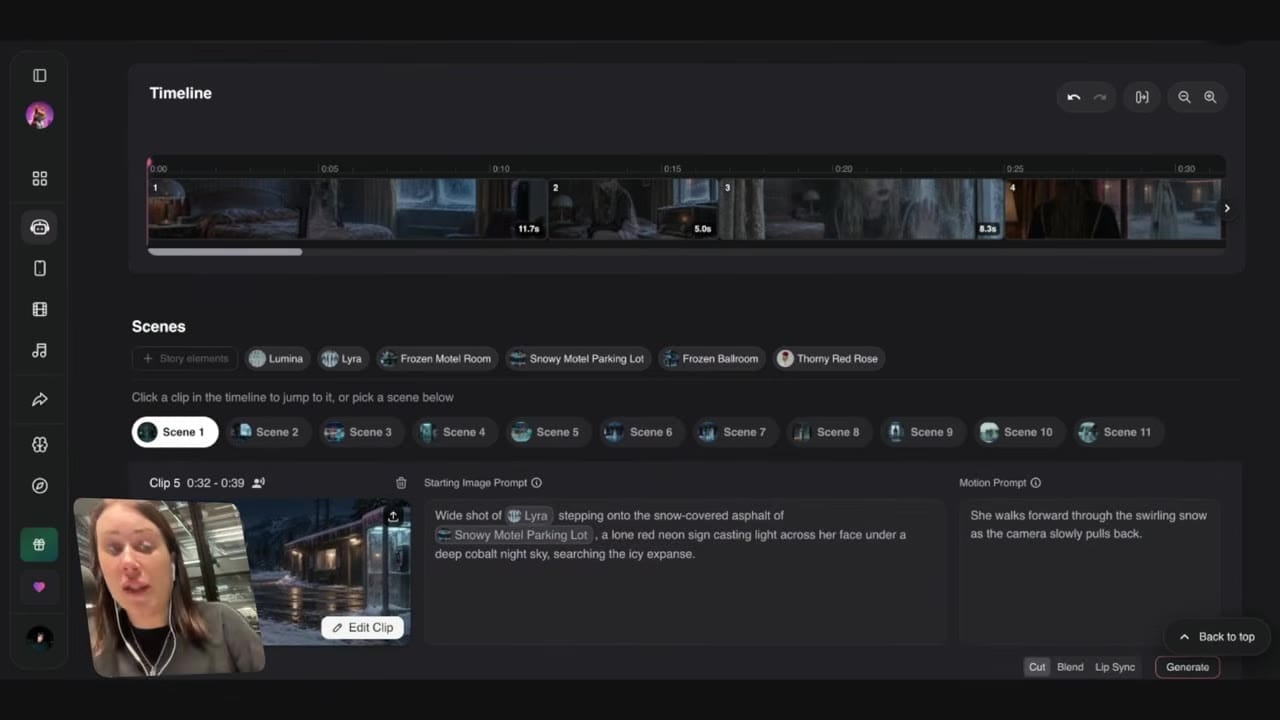
Yes, you can create a lyric video with lip sync. Wherever there is a vocal, the Cut / Blend / Lip Sync switch is available in the keyframes. Make sure the right character is in the frame and chosen in the drop-down menu.
For Spotify Canvas loops, use the loop template in the Short-Form Studio: you upload a photo and it makes a loop. It's a fixed template, and a more flexible option is something we're thinking about.
Spotify's Canvas guidelines ask for a 3–8 second vertical 9:16 loop without singing or rapping, so pick a text-free, mouth-free shot for it. Our Spotify Canvas maker is another quick way to make one.
FAQ
How do I keep the same character in every shot of an AI music video?
Build a character card from several good photos taken from different angles and in different lighting, make one card per outfit, and check every starting image before you render. Recreate a keyframe from its prompt for big changes, because that re-applies your character references.
How many photos do I need for a character card?
More than one. The app needs to see your face from the front, the side and three-quarter. The Autopilot upload dialog accepts 1–10 photos of the same person, at least 480p each.
Why does my AI music video look plastic?
Usually because the starting image looks plastic. Video models copy the keyframe, so fix the skin, framing and light in the starting image first: perspective, cinematic grain and shallow depth of field.
Which shots work best for lip sync?
Waist shots, portraits, close-ups and macro shots of the lips. Skip wide shots, where the face is tiny, and shots where the character has their back to the camera.
Should I use Classic Video or Vocal Video?
We prefer Classic Video, because the framing is more varied, and add lip sync to the shots that suit it afterwards. Use Vocal Video when the video is mostly about the singer's performance.
Can I make a lyric video with lip sync?
Yes. Wherever there is a vocal, the Lip Sync switch is available in the keyframes. See our guide to making a lyric video with AI for the full Lyric Showcase workflow.